Syncs
Files
Select the any tabs that support files.
- Projects
- Groups
- Items
- Tasks
- Publishes
Click on the item.
Click on files in the panel.
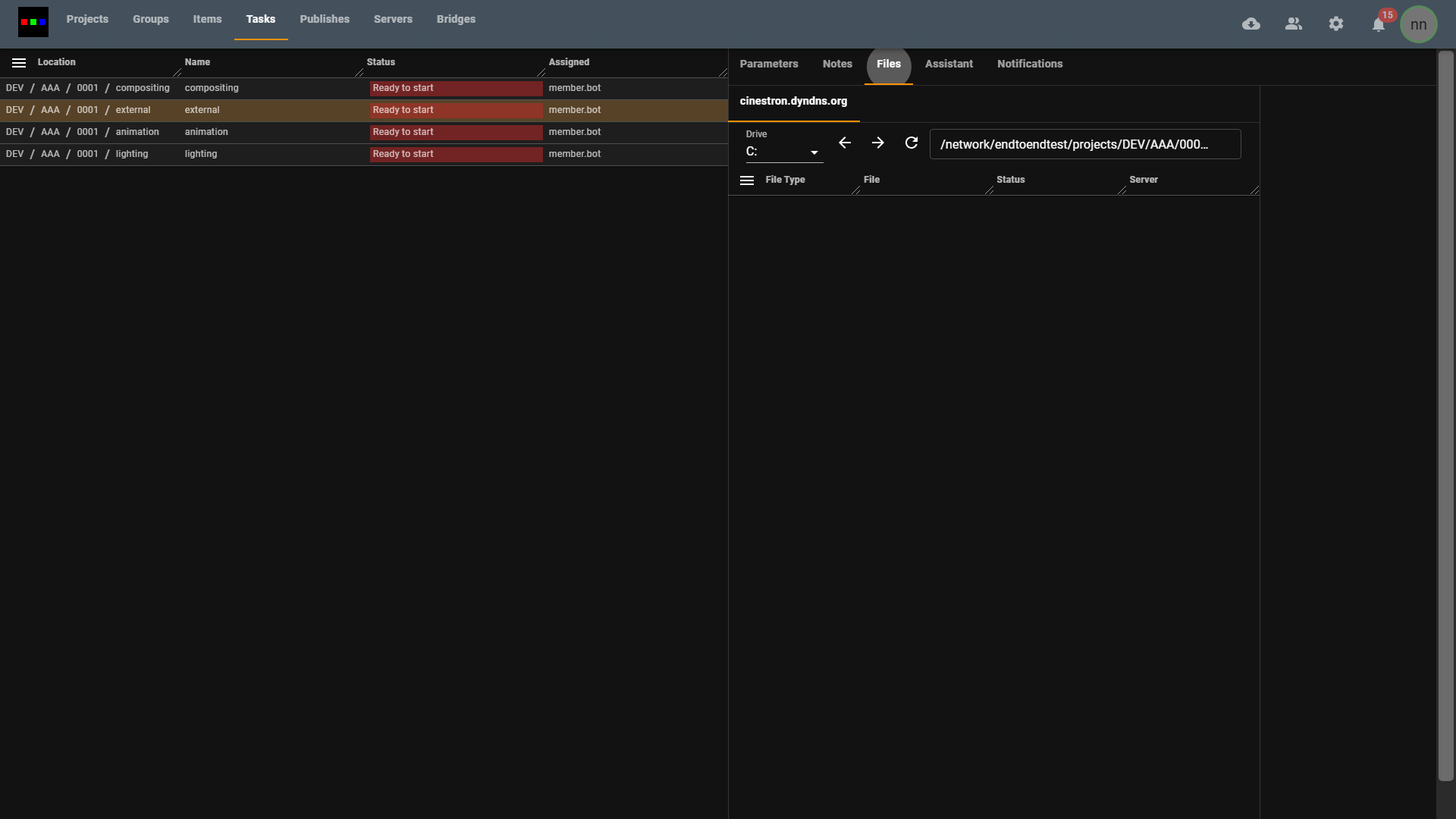
Fill in the address bar or navigate to the location of your files.
-842170246ca0bfbb04e64284fd8c0344.png)
Select the directory or file.
Right click to bring up the context menu.
Click Files > Sync.
-ef8ebb2a8e1b69eb1d69c904dd7cb440.png)
The sync tab will open automatically.
Files will now be gathered.
-cbeaab00be16988e89c8a7d4e508053a.png)
tip
Any files filters you had set previously will affect the results. For example filtering on extension.
Publish files
Update the files you wish to publish.
Select the publish task to publish under.
- If you are already in a valid task location this will be set automatically.
Select the publish component.
- If you are already in a valid task component location this will be set automatically.
- Publish version will auto pick the next new version.
-13e98bda8878bc4426f83276ee845de4.png)
Hit start to begin the publish.
- Any missing files will be synced to the server before the publish.
- Live progress updates happen with in the ui.
- For large amounts of data you can filter the results.
- Any post process will run after publish.
-e5ab6bbbe17ab969162d89dbf8993cd3.png)
tip
Publish locations will automatically be filled in if you sync files from a valid location. For example if you have worked within the automatically generated work folders.