Items
In this section, you can create, manage, and update items. Please note that any white spaces or special characters in item names will be automatically replaced with underscores.
Create an Item
To create a new item, follow these steps:
Access the "Items" Tab: Right-click anywhere inside the "Items" tab.
Open the Actions Context Menu: Click on the actions context menu.
Select "Items": From the context menu, select the "Items" option.
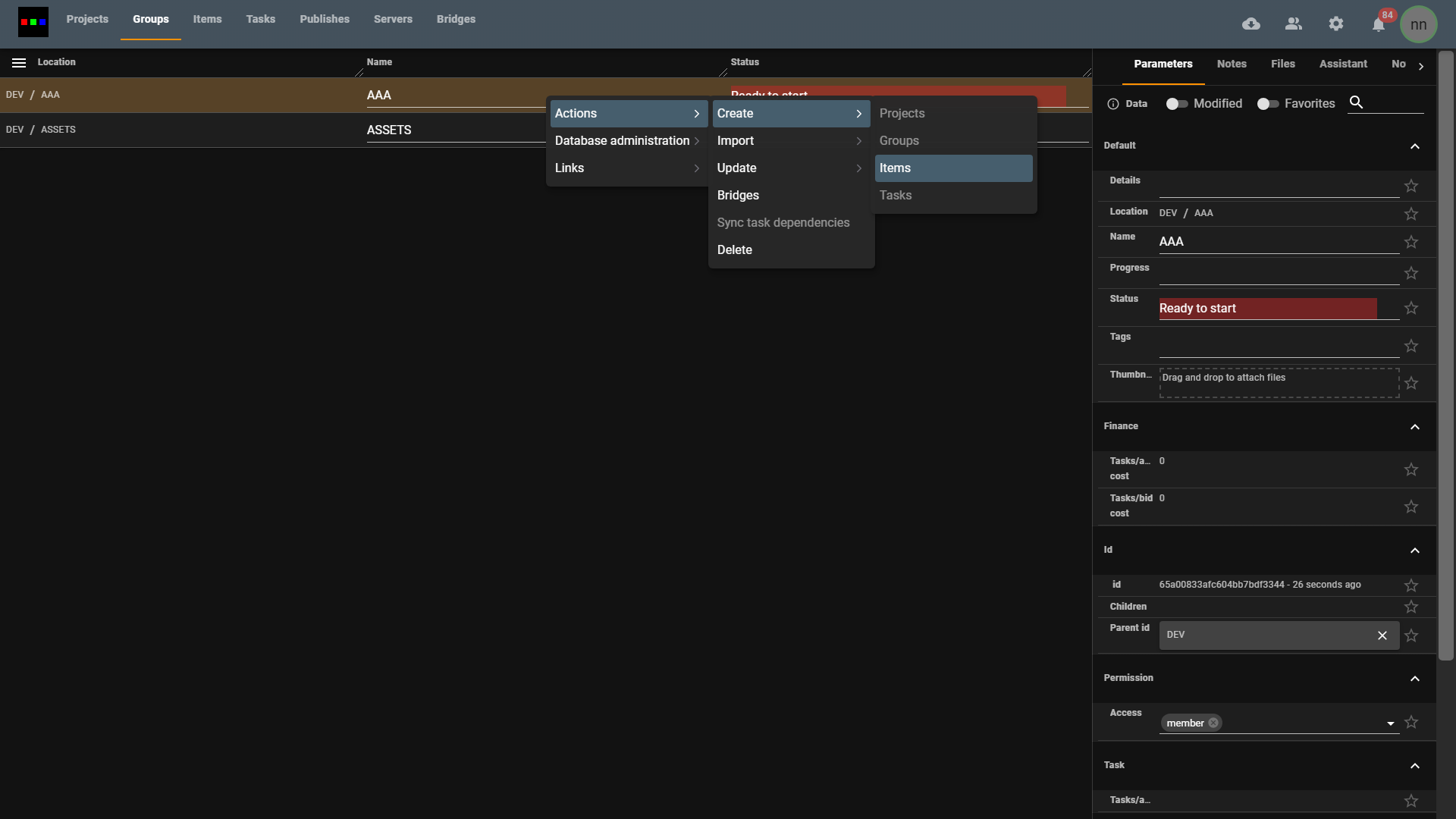
- Name Your Item: Enter the name you want for the item. Any white spaces or special characters in the name will be automatically replaced with underscores. You can create multiple by separating with a ",".
-d48ccf307ae67aea74f1fc60a1710cef.png)
- Click "Create": Click the "Create" button. You also have the option to choose a template based on an existing document, which will recursively copy its contents.
-96f3d5aa1d4c045ae01c3b10f2aa3f13.png)
- Item Created: Congratulations! You've successfully created a new document for your item. You can now proceed with item management.
Update an Item
To update an item, follow these steps:
Locate the Item: Find the item you want to update in the "Items" tab.
Edit Visible Table Parameters: You can now update any visible table parameter, such as changing the item's status to "Ready to start."
-be4f4e91e096724d12e55781db3aa6dc.png)
Access Additional Parameters: For other parameters, click the item and go to the "Parameters" tab. Here, you can assign members to the item and make more detailed updates.
Update access to grant access for users that have that permission
-a528661e119e1ec37df65cb3663a486f.png)